
About add-on permissions
Related information
Overview
Administrators must grant user profiles access to add-on functionality, such as the creation of dashboards and automated data profiling, via the add-on's permission settings. This section provides an overview of how add-on permission settings function and some example use cases. See Managing permissions for instructions on setting permissions to grant users access to add-on functionality.
Understanding permissions
Add-on permissions apply at the global (add-on) and dashboard levels:
-
Permissions at the global level:
-
Govern access to the add-on's services, which allow access to and creation of dashboards and indicators. Only profiles registered in the add-on's Global permissions table can access dashboards.
-
Can follow or override EBX® permissions. This determines what EBX® assets are available for indicators to monitor and report on.
-
-
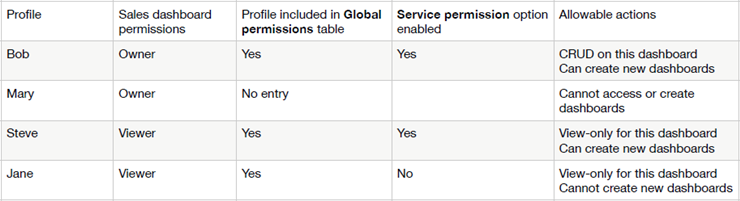
Permissions at the dashboard level indicate a profile's relationship with a dashboard. A dashboard owner has CRUD ability and can share with viewers. Viewers can view, but not change dashboards. Additionally, dashboard permissions are aligned with add-on permissions at the global level. If a viewer doesn't have permission to view some assets on a shared dashboard, they are hidden.
The following table illustrates permission behavior by showing allowable actions for users with various permission settings:
Example use cases
In the example use cases below, let's assume we have a user profile 'Alice'. Alice's profile is registered with the add-on.
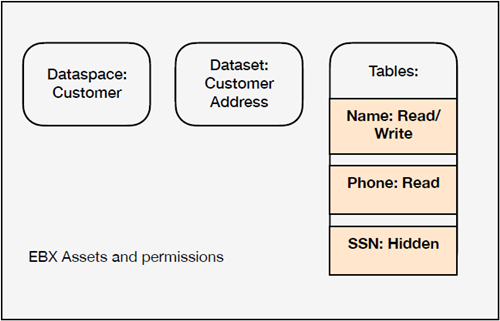
The following image presents a scenario where EBX® assets and Alice's corresponding table permissions are displayed:
Creating a new indicator
For permissions related to creating a new table indicator:
-
Alice creates a new section in a dashboard where she is an 'owner'.
-
The list of tables available to select depends on her global permission settings. If permissions are set to:
-
Bypass EBX Permissions: She can select the 'Name', 'Phone' and 'SSN' tables.
-
Follow EBX Permissions: She can only select the 'Name' and 'Phone' tables.
-
Displaying indicators
For permissions related to loading a dashboard:
-
Alice loads a dashboard that has the following indicators:
-
Function T01 on the 'Name' table.
-
Function T01 on the 'Phone' table.
-
Function T01 on the 'SSN' table.
-
-
The indicators that display depend on her global permission settings. If permissions are set to:
-
Bypass EBX Permissions: She can see the indicators that display data from the 'Name', 'Phone' and 'SSN' tables.
-
Follow EBX Permissions: She can only see the indicators that display data from 'Name' and 'Phone' tables.
-
Note:
When the Bypass EBX Permissions option is enabled for a profile, they can see data values shown on indicators that they do not have permission to see in EBX®. However, they cannot access the underlying records. For example, they can see the most frequently occurring values for fields. However, they cannot use the add-on's linked records service to access the records.