
Running searches
Related information
Overview
An administrator must configure the add-on before you can execute a search. As an EBX® user, the icon in the menu bar to access the add-on's targeted search does not display for you until a configuration exists. Administrators can use the instructions in Configuring search to configure the add-on.
The following sections show how to run a search and use available features:
Executing a search
To run a new search:
-
As shown in the image below, you can run a targeted search from the main EBX® menu. The data on which the add-on performs the search depends on the datasets included by your administrator.

-
Input your search term in the text box and select Search, or press Enter on your keyboard.Note:If you are searching for a date, apply the format 'DD/MM/YYYY' for French and 'MM/DD/YYYY' for other languages.
-
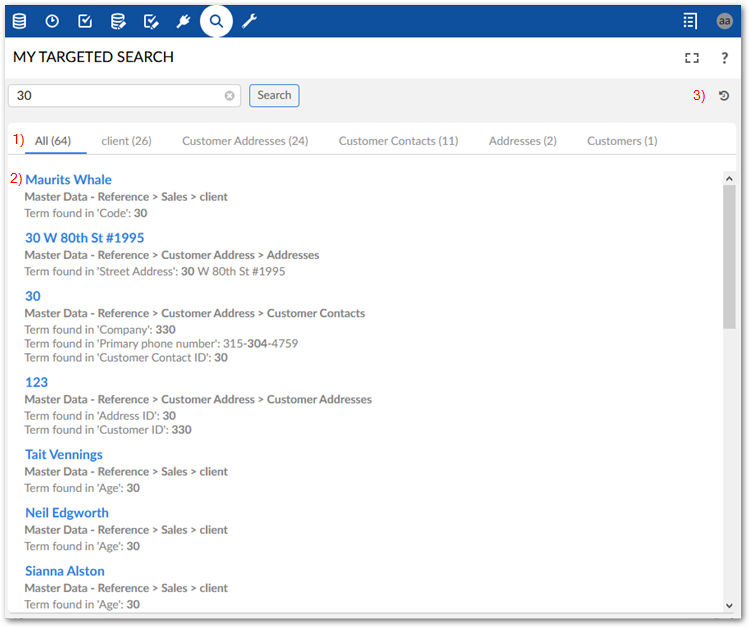
Browse the search results. The following image is of a search that returns results from multiple tables.
|
1)
|
The All tab displays the results from every table. The remaining tabs separate the results by table; each tab label indicates the table's results it contains.
|
|
2)
|
Each result includes: a highlighted link to record containing the result, the dataspace > dataset > table where the result was found, and the field containing the result.
|
|
3)
|
Use the icons to expand to full screen, access the help, and display your search history.
|
Note:
If table data is updated after performing a search, you need to re-execute the search to synchronize the results.
Filtering search results
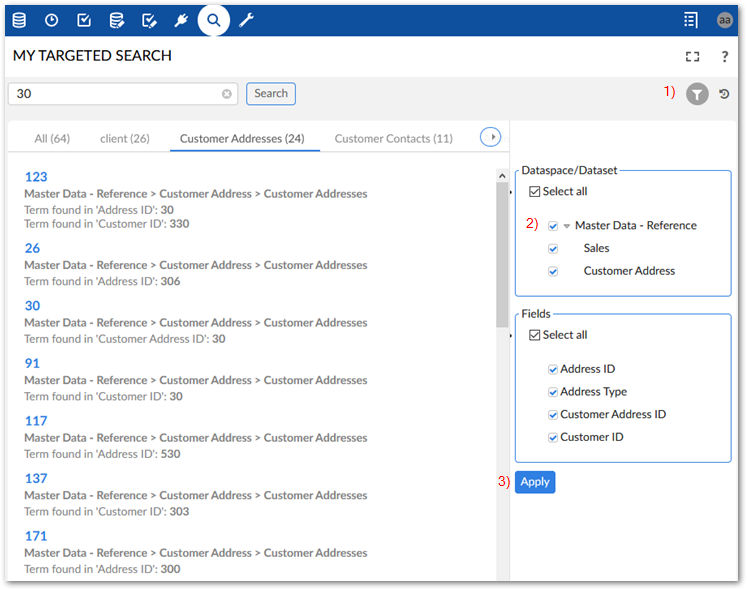
When viewing results from a single table, you can filter the results by dataspace, dataset, and field. The following image highlights this functionality:
|
1)
|
Show/hide the filter.
|
|
2)
|
Select the locations you want to see results from.
|
|
3)
|
Select Apply to filter results.
|
Displaying search history
You can show your search history by clicking History in the top-right of the Search window. Administrators can configure options that determine how much history is kept before overwriting and can purge all history. As a user, you can re-run a search, clear all of your history, or just individual entries in the history.

|
1)
|
Show/hide your search history.
|
|
2)
|
Select Clear to purge your search history.
|
|
3)
|
Click the link to re-execute the search, or X to remove the entry.
|